One of the features in Skyward is the ability to input discipline referrals. Several of our buildings have begun to transition to this method for discipline referrals. Once inputted, the office will be notified of the referral and they will finalize the discipline information.
Here is how you enter a discipline referral from the teacher side of Skyward. To view a printer-friendly version, click here.
There are two ways to get to the discipline entry screen, through your gradebook or through the student’s profile screen.
2. Click on Discipline.

Here is how you enter a discipline referral from the teacher side of Skyward. To view a printer-friendly version, click here.
There are two ways to get to the discipline entry screen, through your gradebook or through the student’s profile screen.
Entering and Viewing Referrals through your Gradebook
1. Click on the Other Access menu in the top left.2. Click on Discipline.
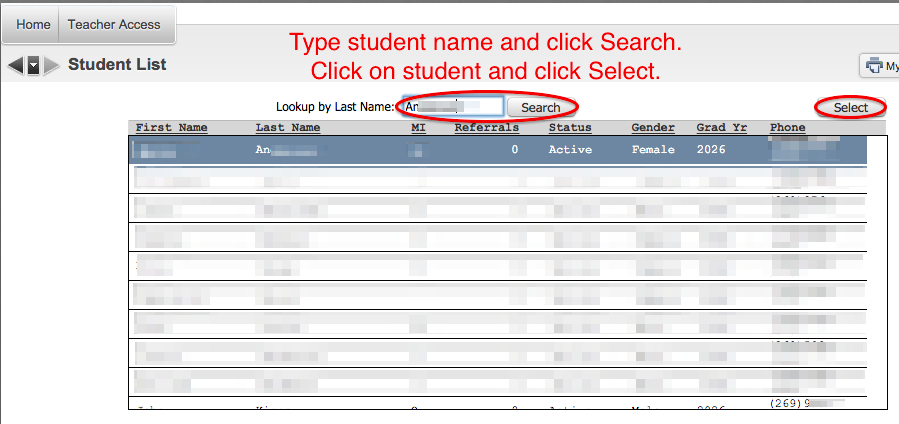
3. Type the name of the student in the search box. Click on the student, then click select.
2. On the right side of the Profile screen you will see the word Discipline. Click on it. This will take you to the screen where you can view referrals and enter new ones.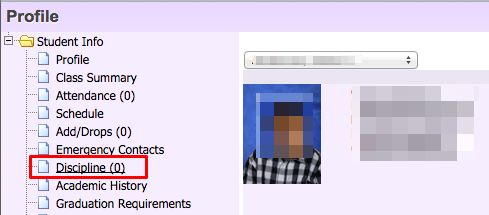
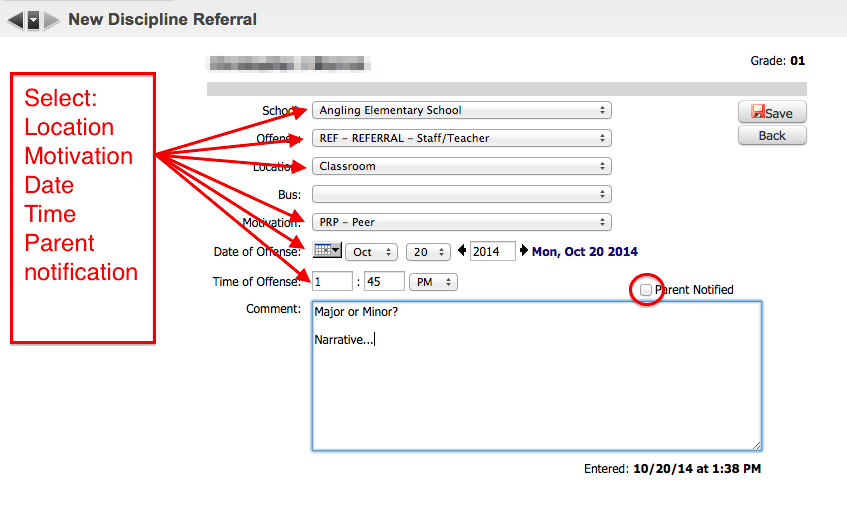
2. This will bring you to the referral screen. Enter the appropriate information from the drop down boxes. The school and offense will be automatically selected. You will need to choose the location, motivation, date and time. If you contacted the parents, check the box that says Parent Notified. In the comment box you will describe, in narrative form, the details of the referral. If you are an elementary teacher, the first thing you should enter is whether the offense was a major or a minor offense. Once you have all the information entered, click Save.
3. The office will now be notified that you have entered a referral and they will be able to finish processing the incident.
Entering and Viewing Referrals through the Student’s Profile Page
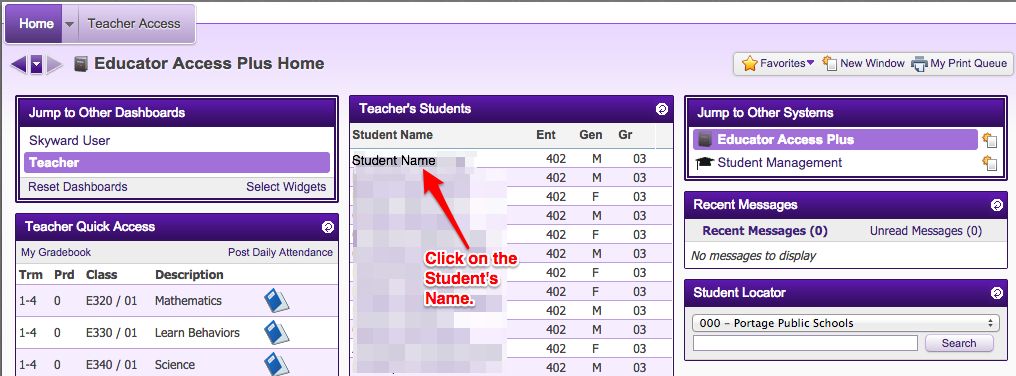
1. From your Home screen, click on the student’s name.2. On the right side of the Profile screen you will see the word Discipline. Click on it. This will take you to the screen where you can view referrals and enter new ones.
Add a New Referral
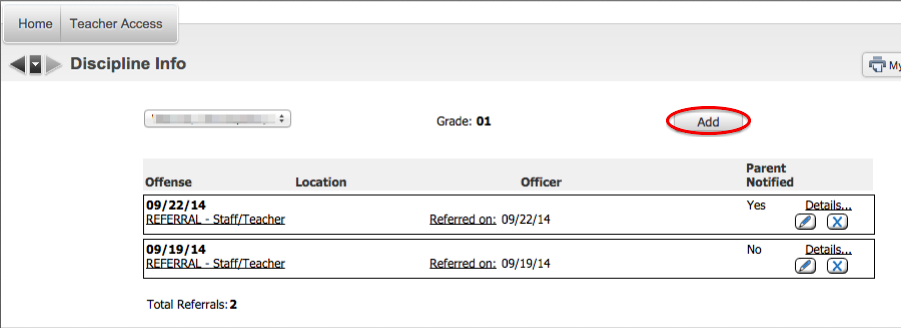
1. This will bring you to a screen where you can see any referrals the student has entered in the system already. There will be an Add button in the top right corner. Click this to add a new referral.2. This will bring you to the referral screen. Enter the appropriate information from the drop down boxes. The school and offense will be automatically selected. You will need to choose the location, motivation, date and time. If you contacted the parents, check the box that says Parent Notified. In the comment box you will describe, in narrative form, the details of the referral. If you are an elementary teacher, the first thing you should enter is whether the offense was a major or a minor offense. Once you have all the information entered, click Save.
3. The office will now be notified that you have entered a referral and they will be able to finish processing the incident.