Secondary Teachers,
At some point while opening your gradebook, you may discover the appearance of a new column titled "M1". This new column M1 is a midterm column and provides a snapshot of a student's grade on a specified date. The presence of this column is required for office staff to run certain reports related to student progress.

As you may find this column unnecessary to view within your gradebook, you may simply ignore it and even turn off its display from view.
Note: Teachers have the ability to adjust the grade in this column. Before doing so, look for communication from your building office as to when certain reports will be run. Midterm grades should not be altered after that point as reports will reflect one grade while the gradebook reflects another. Look to your building office for policy on the use of this column.
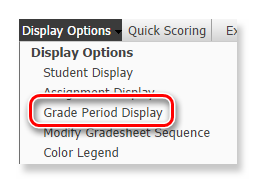
Hover your mouse over "Display Options" and choose "Grade Period Display"
Then either uncheck the box to the left of Mid-Term 1 or click the "Hide All" button to turn off the display for all columns except the current quarter.

Finalize your selections by clicking "Save" at the upper-right of these options. Now your gradebook will no longer display the midterm column.
At some point while opening your gradebook, you may discover the appearance of a new column titled "M1". This new column M1 is a midterm column and provides a snapshot of a student's grade on a specified date. The presence of this column is required for office staff to run certain reports related to student progress.
As you may find this column unnecessary to view within your gradebook, you may simply ignore it and even turn off its display from view.
Note: Teachers have the ability to adjust the grade in this column. Before doing so, look for communication from your building office as to when certain reports will be run. Midterm grades should not be altered after that point as reports will reflect one grade while the gradebook reflects another. Look to your building office for policy on the use of this column.
Instructions for Turning Off the Midterm Column (M1)
Then either uncheck the box to the left of Mid-Term 1 or click the "Hide All" button to turn off the display for all columns except the current quarter.
Finalize your selections by clicking "Save" at the upper-right of these options. Now your gradebook will no longer display the midterm column.
Comments
Post a Comment