Skyward: Adding Classes to Teacher Quick Access on the Teacher Dashboard

Welcome back!  It is time to get another school year underway.  

As you login to Skyward for the first time this school year, you will probably notice that you need to once again set up your teacher quick access so that you can view the blue gradebooks and yellow attendance bells on your dashboard main screen.  Here is how you accomplish that task.

Teacher Quick Access Box

You will also see a box labeled “Teacher Quick Access”. In this box, click on the line that says “Click here to select classes to display for quick access”.

From the window that opens, you can select to take your attendance by name or by seating chart. You will also want to select the “Let me select from all my classes” button. Put check marks in front of all the classes you wish to display. Click Save when finished.
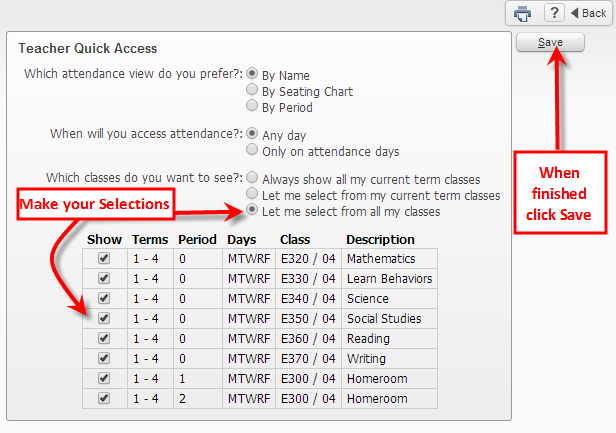
NOTE: Elementary teachers will want to select all. Secondary teachers - If you have semester classes, you can choose to only show the semester you want to see.

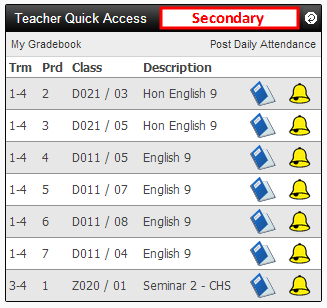
You will now see, in your Teacher Quick Access window your classes you selected. You will also notice blue books and yellow bells. The bells are for attendance. The books are for the gradebook for that course.
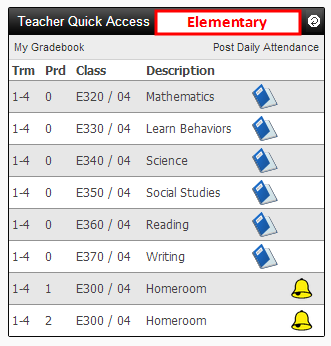
NOTE: Elementary will only have two bells for AM (Prd 1) and PM (Prd 2) Homeroom. Secondary teachers will have books and bells for each class.

Comments

Popular posts from this blog

Google Docs: Fonts for Early Elementary

Sample of search results from fonts.google.com A couple weeks ago, I was sitting in a training with a bunch of my favorite lower elementary teacher friends, and several of them were lamenting the fact that it is hard to find "good" Google fonts for the little people they work with on a daily basis.  Specifically, it is a challenge to find the single story lower case a and the open 4 .  This conversation, of course, sent me out on a mission to remedy this for these fantastic people.  So, the next day I put on my headphones, turned up the tunes on Spotify, and dived into the website fonts.google.com .  This website lists all the Google fonts available.  It also allows you to type in your own letters and numbers and see them in all the various fonts.  For my purpose, I typed in "abckgy 1234 This is the font."  From here I could see all 877 fonts, and look specifically for the a   and the 4.  It was quite an adventure, and I came across...

It's time to change your password!

There are several times a year when it is important to change your password.  Your password will expire every 90 days. When your windows computer informs you that your password will be expiring soon, CHANGE IT THEN! It is also always a good idea to change your password before going on break so that you do not get locked out of your computer, email or gradebook.  Here is how you change your password from the school windows computers. On your Windows desktop/TEC computer , press the Alt, Ctrl and Delete buttons at the same time. Click on "Change a Password" on the menu below: Enter your username, if needed, and follow the directions on screen. If you are off site or working solely on a Chromebook , you can use the VDI (Virtual Desktop) to change your password.   Simply go to vdi.portageps.org.  Click "VMware Horizon HTML Access."  Click "Accept."  Login with your portage username (leave off the @portageps.org) and password.  Click "Login." ...

Skyward Tech Tip: Modifying Attendance

There are times when a teacher must modify attendance. This tip explains how. Note: Modification of attendance history by teachers is limited to a two week window. Should it be necessary to modify a student’s attendance beyond that window, please contact your building office. Step 1: Navigate to the Take Daily Attendance - By Name From the home screen (Dashboard), Click Teacher Access and choose Post Daily Attendance Choose any class “By Name” Step 2: Scroll to the right to see attendance history Step 3: Choose student/day for which you wish to modify attendance Note: Student Attendance may only be modified by individual student Note: Should you need to modify attendance from the day before, the column appears wider than the others. Locate the student for which you will modify attendance and click in the furthest left region of that cell. You will know you are in the correct location when you cursor changes from the arrow to the pointer hand. Step 4: Ch...